
Search the knowledge base, browse our resources, and visit our Community Forum for more detailed information
Last updated: 22 Jul 2026
KoboToolbox allows you to add media, including images, audio files, and videos, to notes, questions, and choices in your form. Adding media can increase user engagement and make forms more accessible for users with visual impairments or literacy barriers. You can also use this approach to add your organization’s logo to your form.
Form media works with both KoboCollect and web forms. The following types of media files are currently supported:
Media |
Files |
|---|---|
Image |
jpeg, png, svg |
Audio |
aac, aacp, flac, mp3, mp4, mpeg, ogg, wav, webm, x-m4a, x-wav |
Video |
3gpp, avi, flv, mov, mp4, ogg, quicktime (qtff), webm, wmv |
This article covers the following topics:
Adding media to survey questions
Adding media to options choices
Adding media to form translations
Uploading media files to KoboToolbox
Note: The KoboToolbox Formbuilder does not currently support adding media files inside your forms. To add media, you will need to use XLSForm and then upload your XLSForm to KoboToolbox. To learn more about downloading and editing your form as XLSForm, see Using XLSForm with KoboToolbox.
For hands-on practice with adding media attachments in XLSForm, see KoboToolbox Academy’s XLSForm Fundamentals Course.
To add media files to questions or notes in your XLSForm:
Add a new question in the survey worksheet, specifying the type, name, and label (optional).
Use a note question type if you want to display the media file without collecting any data (e.g., an organization logo or introduction video).
Adding a label is optional when including a media file.
Add a column for the media you want to include. Name it image, video, or audio, depending on the media type.
In the media column, in the row of the question you have added, enter the exact name of the media file including the extension.
For example: logo.png or intro.mp4.
survey worksheet
type |
name |
label |
image |
|---|---|---|---|
text |
Q1 |
In your own words, how would you describe the image above? |
q1.png |
survey |
Note: Previously, the format media::file_type was used for media column names (e.g., media::image, media::video, media::audio). The simplified format using only the media type without the media:: prefix is now more commonly adopted (e.g., image, video, audio).
To upload the media files to KoboToolbox:
Go to your KoboToolbox account.
In your KoboToolbox project, navigate to SETTINGS > Media.
Upload the media files that you have added to your XLSForm, ensuring the file name is exactly the same.
Deploy or redeploy your form to see media changes.
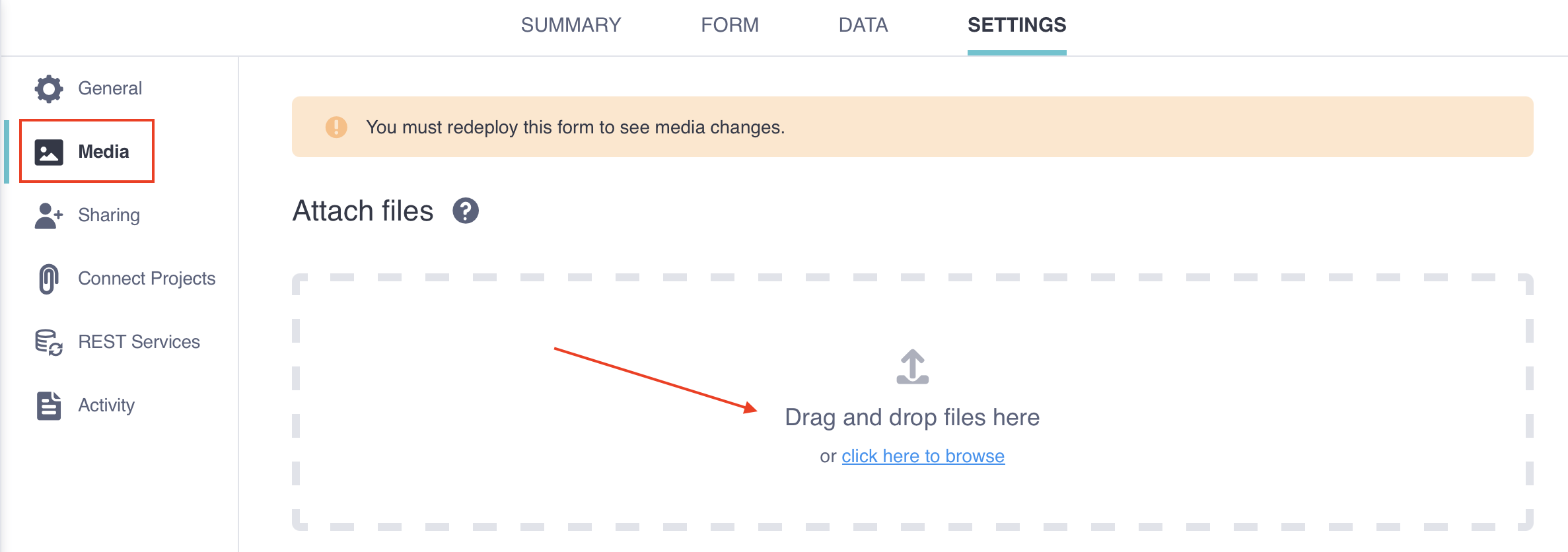
To learn more about uploading media files, see Uploading media files to a project.
To add media files to option choices in your XLSForm:
Add a select type question in the survey worksheet.
In the choices worksheet, add a list_name, name, and label (optional) for your choices.
Adding a label is optional when including a media file. If you wish to use the media files as options label, omit the label text.
Add a column for the media you want to include. Name it image, video, or audio, depending on the media type.
In the media column, in the row of the choices you have added, enter the name of the media file including the extension.
For example: goat.png or fish.png
survey worksheet
name |
type |
label |
|---|---|---|
select_one animals |
animals |
Which of these is your favorite animal? |
survey |
choices worksheet
list_name |
name |
label |
image |
|---|---|---|---|
animals |
goats |
Goats |
goat.png |
animals |
cows |
Cows |
cow.png |
animals |
chicken |
Chickens |
chicken.png |
animals |
pigs |
Pigs |
pig.png |
animals |
fish |
Fish |
fish.png |
choices |
To upload the media files to KoboToolbox:
Go to your KoboToolbox account.
In your KoboToolbox project, navigate to SETTINGS > Media.
Upload the media files that you have added to your XLSForm, ensuring the file name is exactly the same.
Deploy or redeploy your form to see media changes.
In XLSForms that are translated in multiple languages, you can include different media files for each language by adding new image, audio, or video columns.
To add media files for different languages in your survey worksheet:
Rename your media columns using the format media_type::language (code), where media_type is the type of media file and language is the default language.
For example: image::English (en)
Add a new media column for each translation language using the format media_type::language (code).
For example: audio::Spanish (es)
In the media column for each language, enter the name of the media file you wish to include, including the extension.
To use the same media file for each language, enter the same file name as the one in the default language column.
Note: If a media file is not listed in a translation column, it will not be displayed for that language.
survey worksheet
type |
name |
label |
video::English (en) |
video::Chichewa (ny) |
|---|---|---|---|---|
note |
intro |
Before you answer the form, watch the video below: |
intro.mp4 |
intro_ny.mp4 |
survey |
To upload the translated media files to KoboToolbox:
Go to your KoboToolbox account.
In your KoboToolbox project, navigate to SETTINGS > Media.
Upload the media files that you have added to your XLSForm, ensuring the file name is exactly the same.
Deploy or redeploy your form to see media changes.
To learn more about managing translations in XLSForm, see Adding translations in XLSForm.
Did you find what you were looking for? Was the information clear? Was anything missing?
Share your feedback to help us improve this article!