
Search the knowledge base, browse our resources, and visit our Community Forum for more detailed information
Last updated: 22 Jun 2026
Note questions are used to display information within your form without collecting a response. Although they are listed as a question type, note questions do not store any data. Instead, they are used to provide instructions, context, or additional details that help respondents or enumerators understand and complete the form correctly.
You can use note questions to introduce a new section, explain why certain questions are being asked, provide guidance on how to respond, display media, or show the results of hidden calculations or previous responses.
This article explains how to add a Note question in the Formbuilder and how to add styling to your note text.
To add a note question to your form:
Click the button.
Enter your question label.
Click + ADD QUESTION.
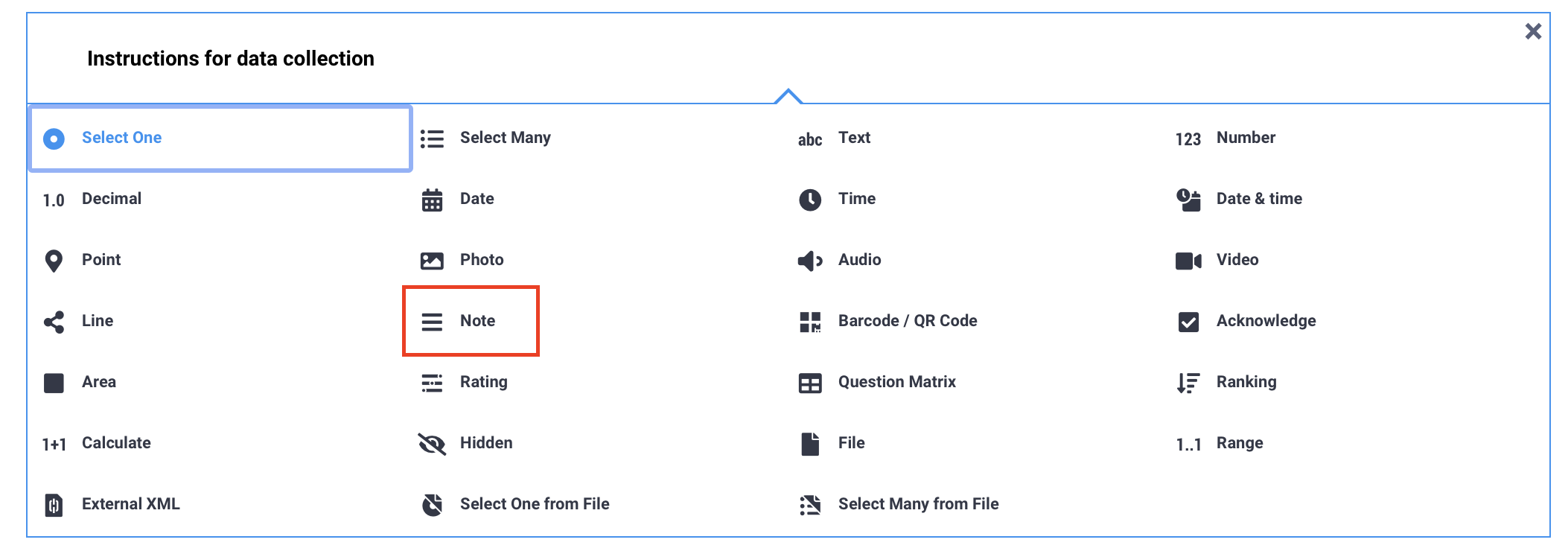
Choose the Note question type.
By default, note questions appear as simple text in your form.
Web forms |
KoboCollect |
|---|---|
|
|
When adding notes to your form, you can use Markdown and HTML to style text, add emphasis with bold or italics, create headers of different sizes, change fonts and colors, and add clickable web links.
Note: Text styling can also be applied to questions labels and hints.
Text styling features in the Formbuilder include:
Feature |
Formatting |
|---|---|
Italics |
|
Bold |
|
Hyperlink |
|
|
|
Headers |
|
Emojis |
For example, 🙂 😐 🙁 😦 😧 😩 😱 |
Superscript |
|
Subscript |
|
Colored text |
|
Font |
|
Align center |
|
Underline |
|
Note: Additional formatting features, such as line breaks, bullet lists, and numbered lists, are available only when building your form in XLSForm.
Did you find what you were looking for? Was the information clear? Was anything missing?
Share your feedback to help us improve this article!

