
Search the knowledge base, browse our resources, and visit our Community Forum for more detailed information
Last updated: 27 Jul 2026
Media files collected from respondents often contain important contextual information, such as photos, recordings, or documents that support and enrich survey data. After data collection begins, these files become part of your project data and need to be managed carefully.
This article explains how to view, download, and delete media files submitted by respondents, including images, audio recordings, videos, and other file types.
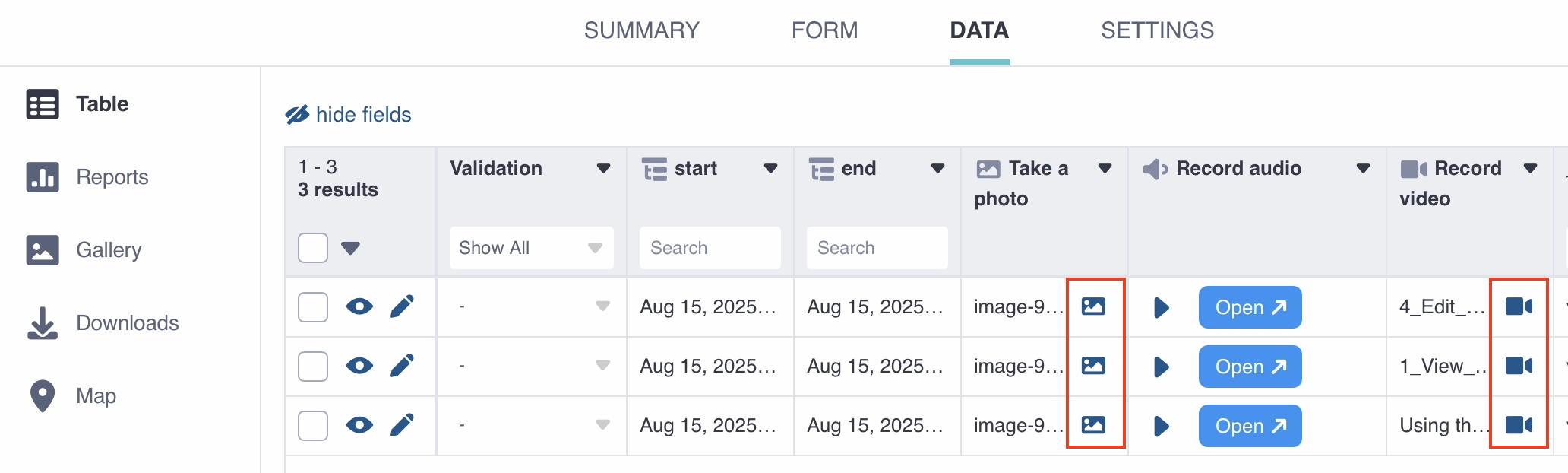
All media files submitted by respondents can be viewed from your project’s data table. To open media files in individual submissions:
Open your project and go to the DATA page.
In the data table, locate the cell containing the file.
Click the image, video, or file icon. For audio recordings, click Open.
Images can also be viewed in the Gallery view of your project. To view all images collected within a single project:
Open your project and go to the DATA page.
Open the Gallery tab from the left-side menu.
The Gallery view displays all images collected in the project. You can filter images by question or by date range.
You can download media files either individually from the data table, or in bulk from the Downloads page.
To download a single file:
Go to the DATA page.
In the data table, locate the cell containing the file.
Click the image, video, or file icon. For audio recordings, click Open.
Click the three dots at the top of the preview.
Click Download.
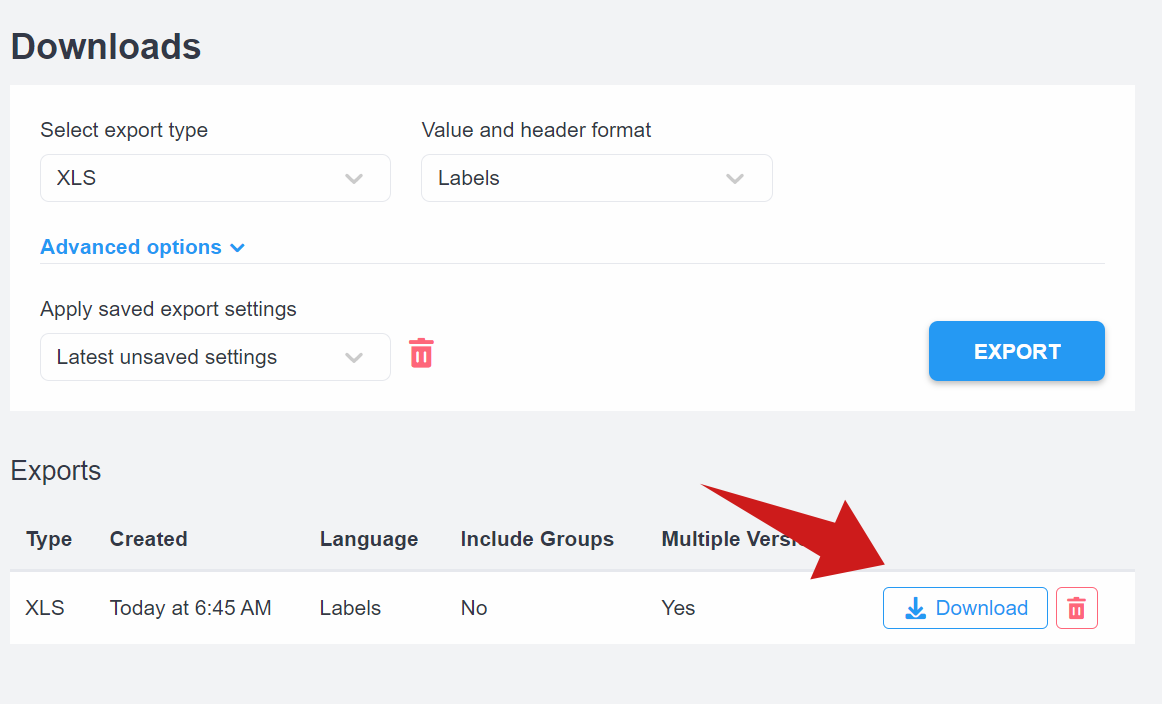
To download media files in bulk:
Go to the DATA page.
Open the Downloads tab from the left-side menu.
Under Select export type, choose Media Attachments (ZIP).
Click New Export and wait for the export to complete.
Download the generated .zip file from the table.
In the downloaded folder, attachments are grouped by submission. Each folder name corresponds to the submission’s rootUuid, which also appears as a column in the dataset.
Note: Media exports include only questions that are present in the most recent version of the form.
When you export your data in CSV or XLS format, the exported file also includes hyperlinks that open the associated media files in a web browser, as long as the default option to Include media URLs is selected.
To learn more about exporting your data, see Exporting and downloading your data.
You may need to delete media files from your KoboToolbox project for various reasons, such as maintaining confidentiality, managing storage space, or correcting submission errors. You can delete media files individually, or delete multiple files in bulk.
There are two ways to delete individual media files: directly from the data table or by opening the submission. Once a file is deleted, it is marked as Deleted in the data table and cannot be recovered.
Deleting individual media files from the data table
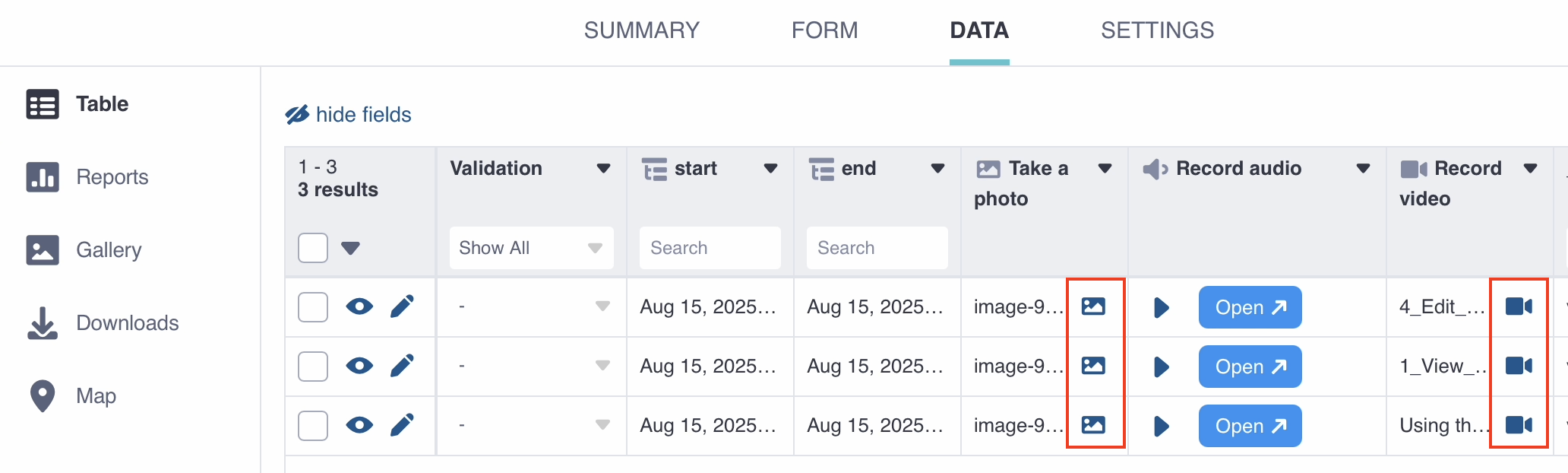
You can delete individual images, videos, and files directly from the data table, with the following steps:
In the data table, locate the cell with the media file you want to delete.
Click the image, video, or file icon.
Click the three dots at the top of the file preview.
Click Delete, then Delete again to confirm.
Deleting individual media files in the submission view
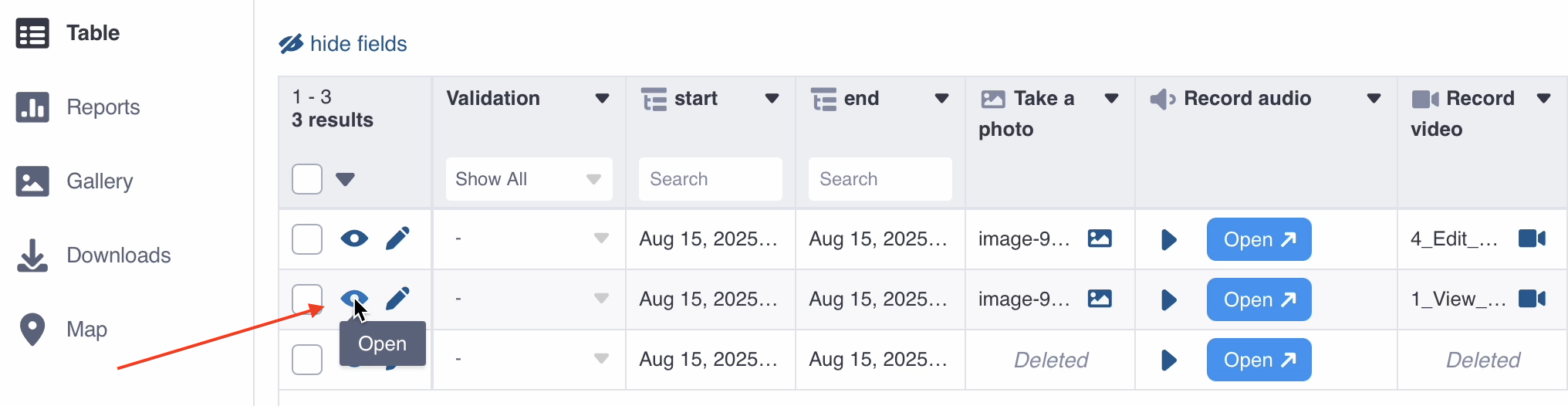
You can also delete media files by opening the submission view:
In the data table, locate the submission with the media files you want to delete.
On the left side of the submission, click Open.
Scroll down to the media file you want to delete.
Click the three dots to the right of the media file.
Click Delete, then Delete again to confirm.
Deleting audio files in the audio question view
You can delete audio files by opening the audio question view for transcription, translation, and analysis of audio questions:
In the data table, click on Open to open the audio question view.
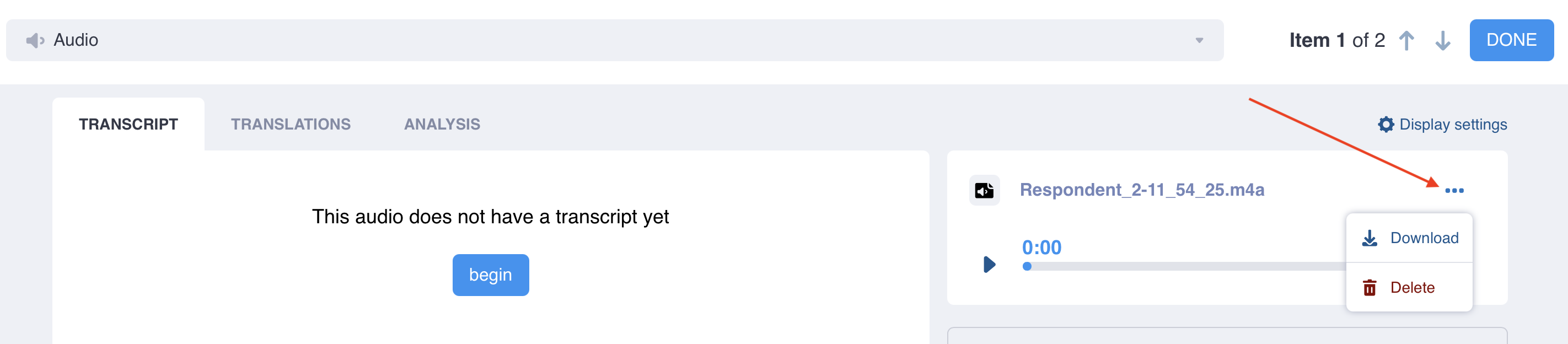
In the TRANSCRIPT, TRANSLATIONS, or ANALYSIS tab, locate the audio file in the top right corner.
Click the three dots to the right of the audio file.
Click Delete, then Delete again to confirm.
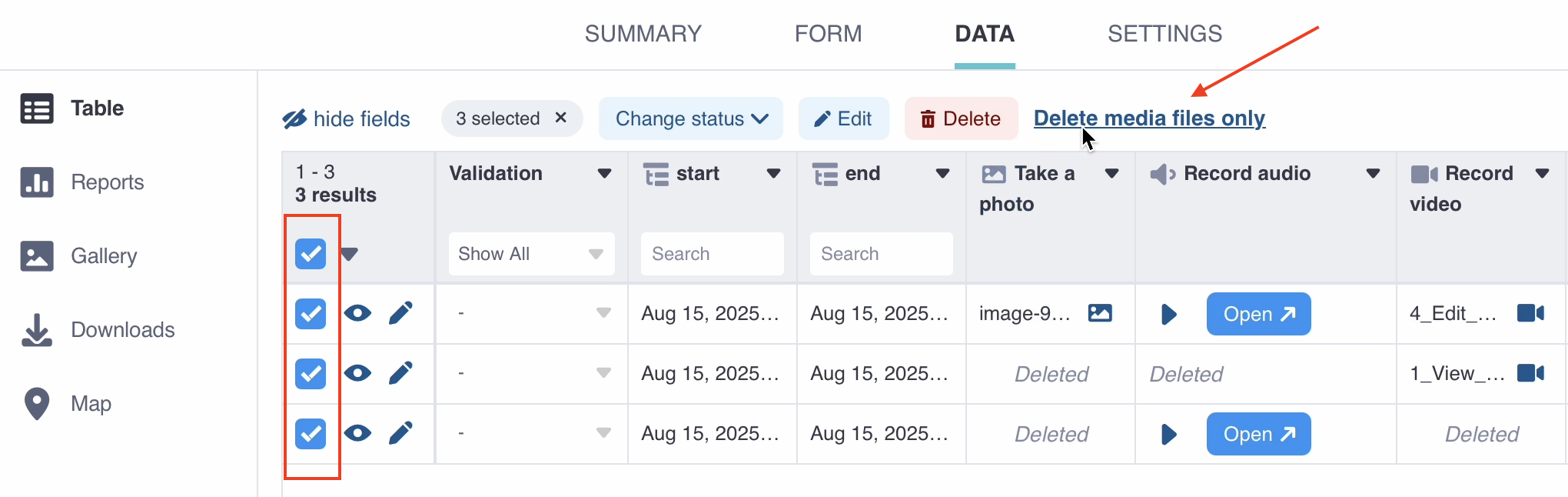
You may need to delete media files in bulk, for example, to manage storage space after they have been exported. You can delete all media files for selected submissions using the following steps:
Select the submissions for which you want to delete media files.
Click Delete media files only above the data table.
This action opens a modal showing the number and types of media files to be deleted with this selection.
Check the box that says “You are about to permanently remove the following media files from the selected submissions:”.
This step acknowledges that the files will be permanently deleted and are not recoverable.
Click Delete.
Note: With this approach, all media files from each selected submission will be deleted; it is not currently possible to choose only files for a given question.
You can adjust the extension settings to limit download speed or retry failed downloads. This method can be used to download all media files, or only selected files, without relying on the ZIP export.
https://kc.kobotoolbox.org/media/original?media_file=...
https://kf.kobotoolbox.org/api/v2/assets/{asset_uid}/data/{submission_id}/attachments/{attachment_uid}/
Did you find what you were looking for? Was the information clear? Was anything missing?
Share your feedback to help us improve this article!