
Search the knowledge base, browse our resources, and visit our Community Forum for more detailed information
Last updated: 8 Sep 2026
Selecting options from an image allows respondents to tap or click directly on specific areas of an SVG file instead of choosing from a text list. This feature works in both web forms and the KoboCollect Android app.
You might use this feature to:
Select a location from an image of a room or facility
Select a body part from a diagram of the human body
Select damaged areas from a photo of a building after a disaster
This article explains how to create a selectable SVG image and configure your XLSForm so respondents can choose options directly from the image.
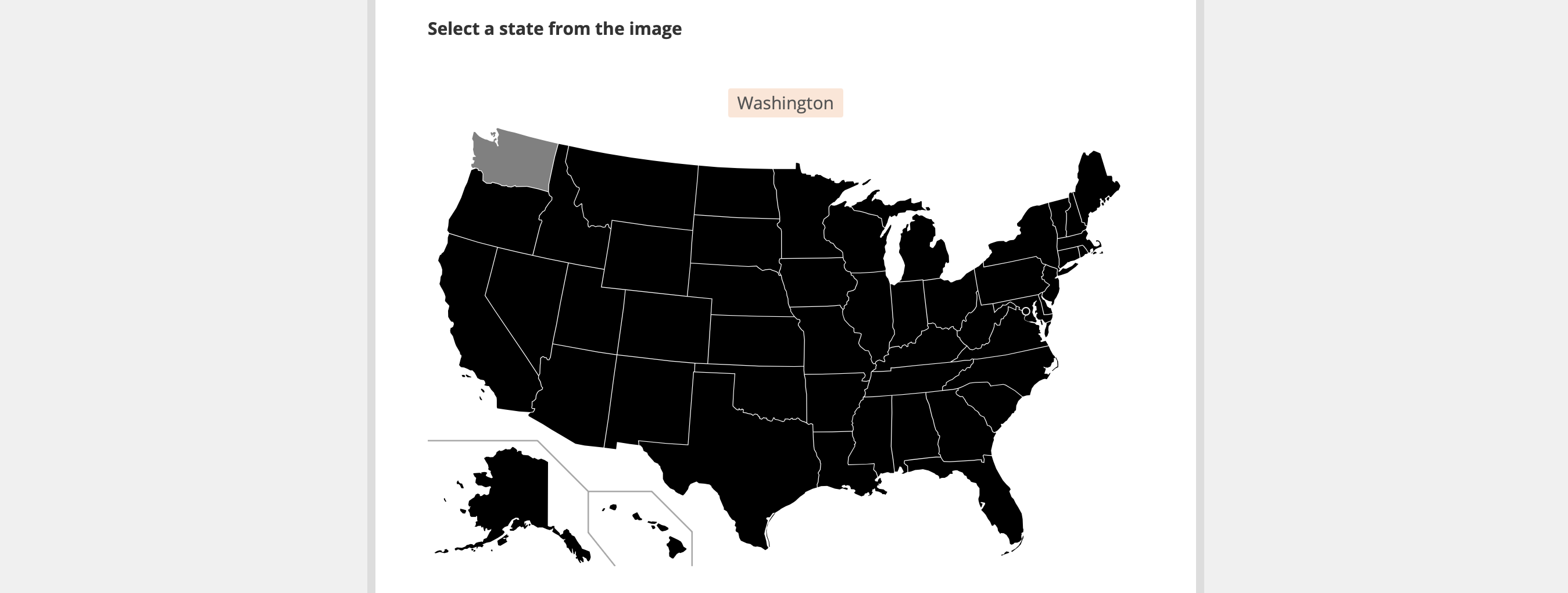
To create an image with selectable regions, you must use an SVG (Scalable Vector Graphics) file.
To learn more about SVG files, see SVG documentation. We recommend using Inkscape, a free and open source vector graphics editor, for creating and editing SVG files.
Each selectable area in the image must include an id attribute. These id values must exactly match the corresponding name values in the choices sheet of your XLSForm, so they should follow the same naming conventions.
To create your selectable image file:
Create or edit a .svg file.
Add id attributes to each element you want to be selectable.
Save the file.
Note: In web forms, only SVG <path> elements are supported as selectable areas. Other SVG shapes, such as rectangles or circles, may not work as expected. KoboCollect supports additional SVG primitives.
To allow respondents to select options from your image in XLSForm:
In the survey worksheet, add a select_one or select_multiple question.
Add an appearance column and enter image-map.
Add an image column and enter the exact name of the SVG file.
In the choices worksheet, add the list of choices.
The name column must exactly match the id values in your SVG file.
survey sheet
type |
name |
label |
appearance |
image |
|---|---|---|---|---|
select_one body |
body_part |
Which body part hurts the most? |
image-map |
body.svg |
survey |
choices sheet
list_name |
name |
label |
|---|---|---|
body |
leg |
Leg |
body |
arm |
Arm |
body |
head |
Head |
choices |
After creating your SVG file and referencing it in your XLSForm, you will need to upload it to your project.
To upload media files:
Log in to your KoboToolbox account.
Open your project.
Go to SETTINGS > Media.
Upload the SVG file. Ensure the file name matches exactly what is written in the image column of your XLSForm.
Deploy or redeploy your form to apply the changes.
To learn more about uploading media files, see Uploading media files to a project.
select_one question uses the image-map appearance with skip logic, the SVG image may not display if the question changes from hidden to visible after its relevance condition becomes true.select_one question in a group and display the group on a separate page using the field-list appearance and the pages theme.
image-map appearance includes a raster image as its background, the background may appear washed out or parts of the image may not display correctly in web forms.Did you find what you were looking for? Was the information clear? Was anything missing?
Share your feedback to help us improve this article!