
Search the knowledge base, browse our resources, and visit our Community Forum for more detailed information
Last updated: 19 Feb 2026
A project in KoboToolbox corresponds to a form, its settings, and all data submitted to that form. Project management begins on the Projects home page, where you can view, sort, filter, and organize your projects. You can also create new projects, update existing ones, and manage how they are shared with collaborators.
This article explains how to view and manage projects, create new projects, work with project settings and data, and archive or delete projects that are no longer in use.
The Projects home page lists all projects you own or that have been shared with you. The My Projects table displays key information such as project name, owner, status, and number of submissions.
Projects exist in three states:
Deployed: Projects that have been published and are ready for data collection, allowing users to open the form and submit responses.
Draft: Projects that are still being developed or edited and are not yet deployed, so they cannot receive submissions.
Archived: Projects that have been removed from the active project list and no longer accept new submissions, but are retained for reference or record-keeping.
You can manage your projects using the tools in this page:
Filter: Click filter to filter projects by name, description, status, owner, date last edited, date last modified, date last deployed, sector, countries, and languages.
Select fields: Click fields to choose which fields are displayed in the My Projects table.
Sort: Click a column header to sort by that field.
More actions: Select the checkbox next to a project to take action on it.
In the top right corner, you can archive a project or update its sharing permissions.
You can also delete multiple projects at once.
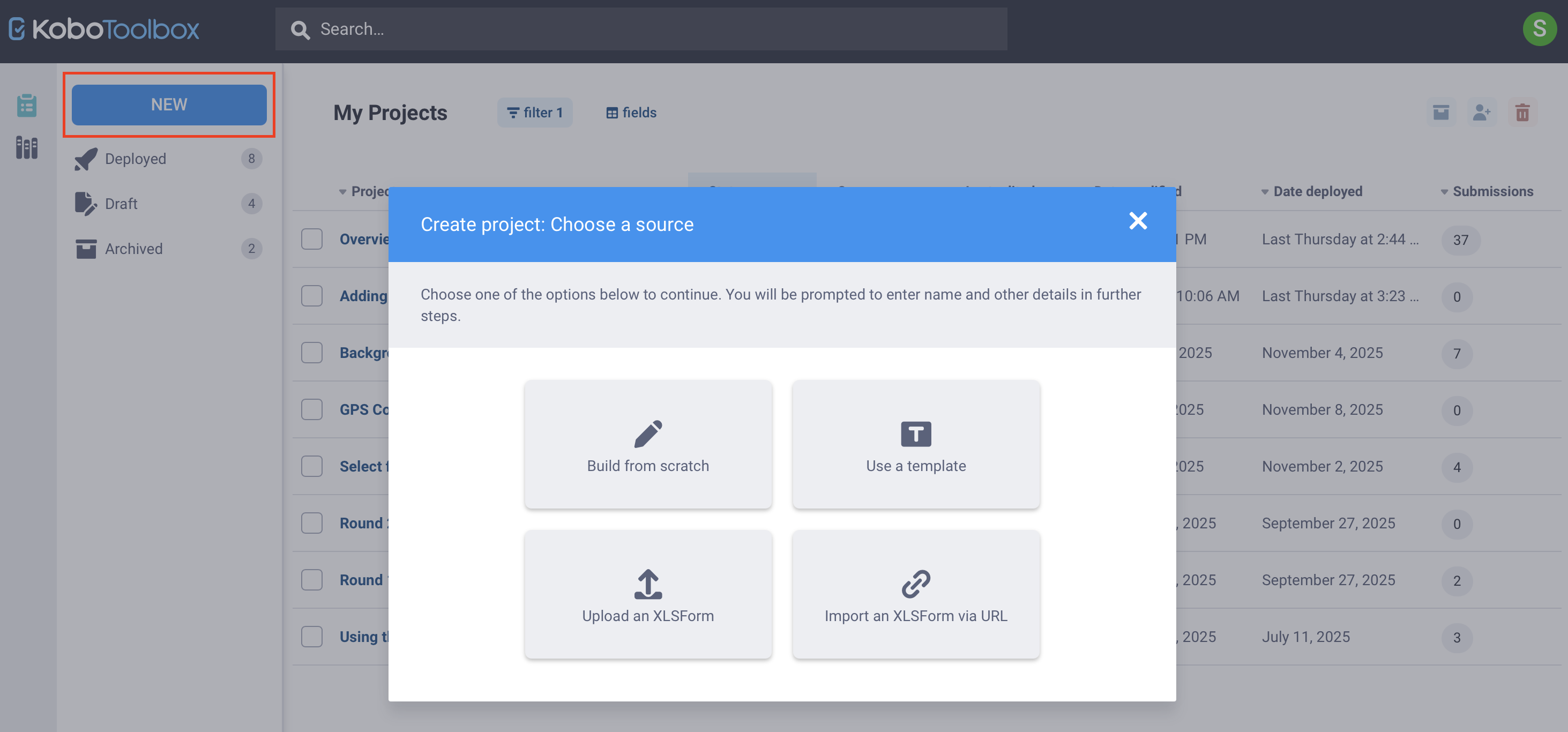
To create a new project in KoboToolbox:
Click NEW from the Projects home page.
Choose one of the following options:
Build from scratch to create a form using the Formbuilder.
Use a template to select a form template from the question library.
Upload an XLSForm to upload an existing XLSForm.
Import an XLSForm via URL to link to an XLSForm stored online.
Create, test, and preview your form.
Click DEPLOY from the FORM page of your project to make the form live for data collection.
When you open a project, you can manage it through the tabs at the top of the page:
SUMMARY: Overview of the project metadata and submissions.
FORM: Edit the form, deploy changes, and copy the form link.
DATA: View submitted data in different formats, generate reports, and export data.
SETTINGS: Update project settings, including sharing permissions, form media, and general configuration.
To learn more about managing your data in KoboToolbox, see Viewing and validating your data and Editing and deleting your data.
As projects become outdated or no longer needed, you can remove them from active use by archiving or deleting them. Archiving stops new submissions while keeping the form and existing data available. Deleting permanently removes the project and all of its data from your account.
Note: Because deleted projects cannot be recovered, delete a project only when you are certain that neither the form nor its data will be needed. Before deleting a project, we recommend downloading the form as an XLSForm and exporting all project data.
Archiving is recommended for forms that should no longer accept submissions but need to remain available for reference.
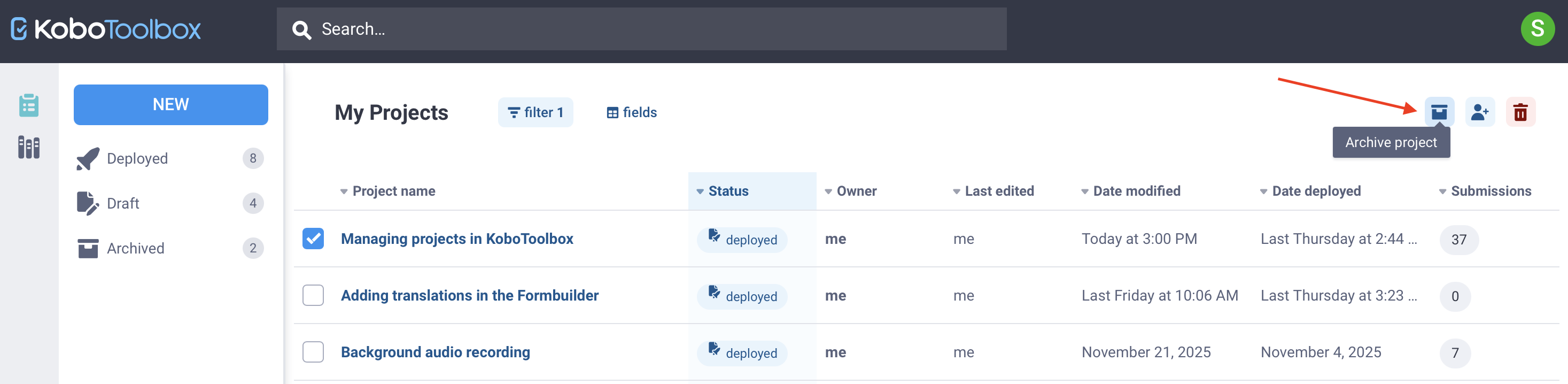
There are two ways to archive a project. To archive a project from the Projects home page:
In the Projects home page, select the project checkbox.
Click Archive project in the top right corner.
You will be asked to confirm that your form will not accept submissions while it is archived. Click ARCHIVE to confirm.
To archive a project from the project SETTINGS:
Open the project and go to the SETTINGS page.
In the General tab, click Archive Project.
You will be asked to confirm that your form will not accept submissions while it is archived. Click ARCHIVE to confirm.
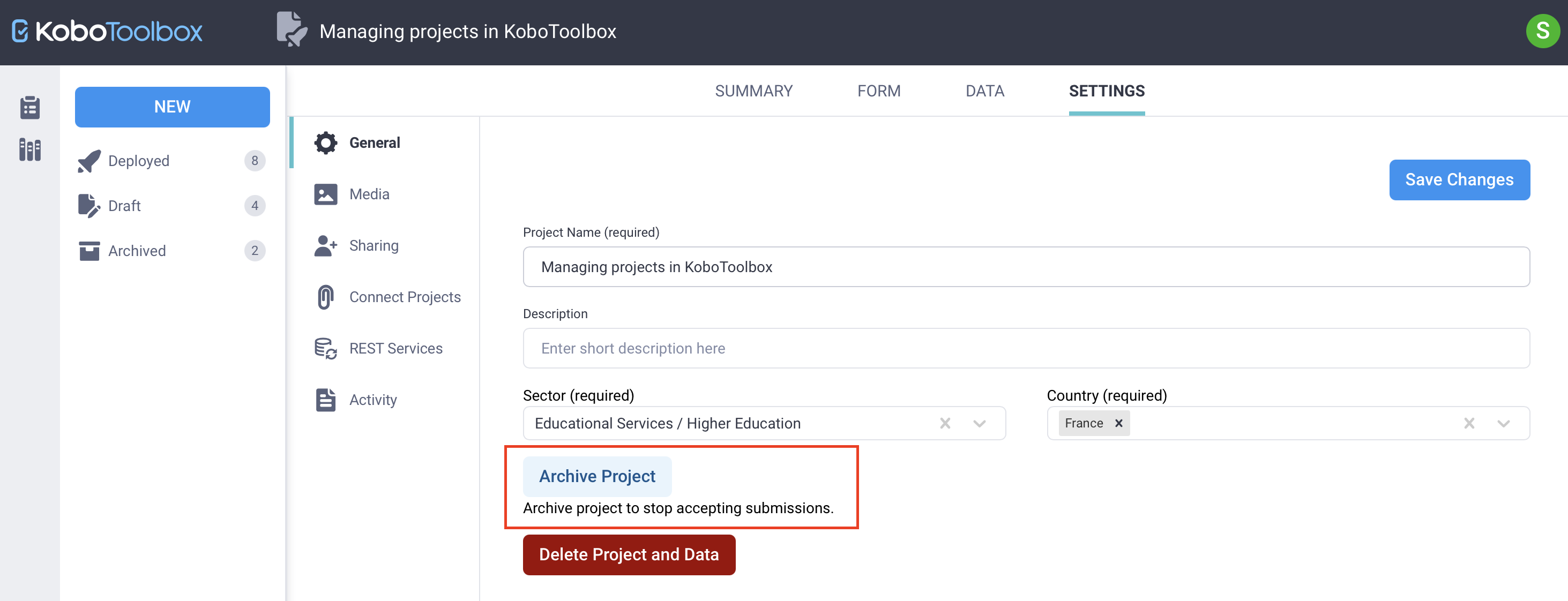
To unarchive a project, follow the same steps and click Unarchive Project.
Deleting a project permanently removes the form and all associated data. This action cannot be reversed.
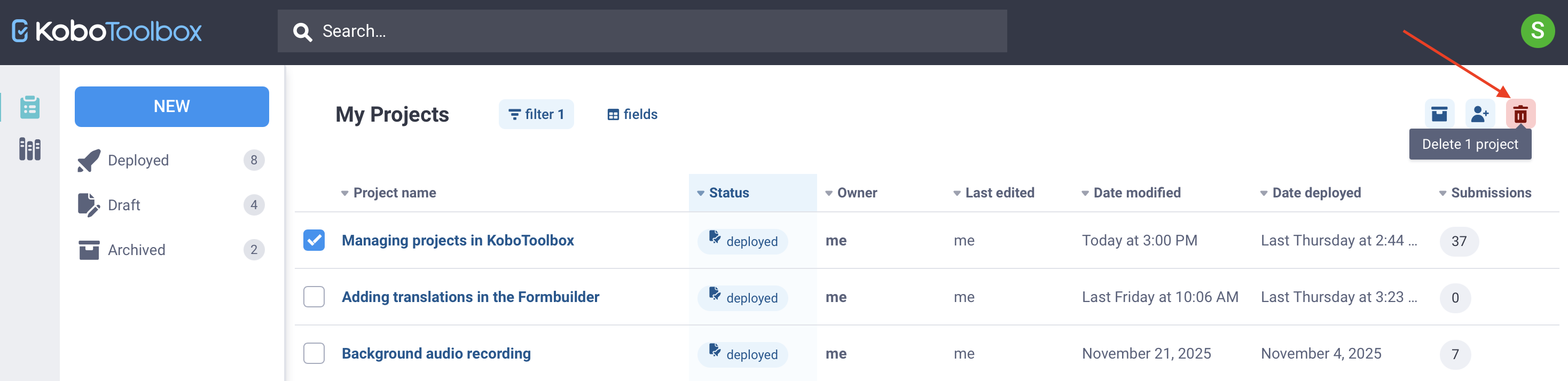
There are two ways to delete a project. To delete a project from the Projects home page:
In the Projects home page, select the checkbox next to the project.
Click Delete 1 project in the top right corner.
A confirmation dialog will require you to acknowledge the following:
You are about to permanently delete this form.
All data gathered for this form will be deleted.
The form associated with this project will be deleted.
To delete a project from the project SETTINGS:
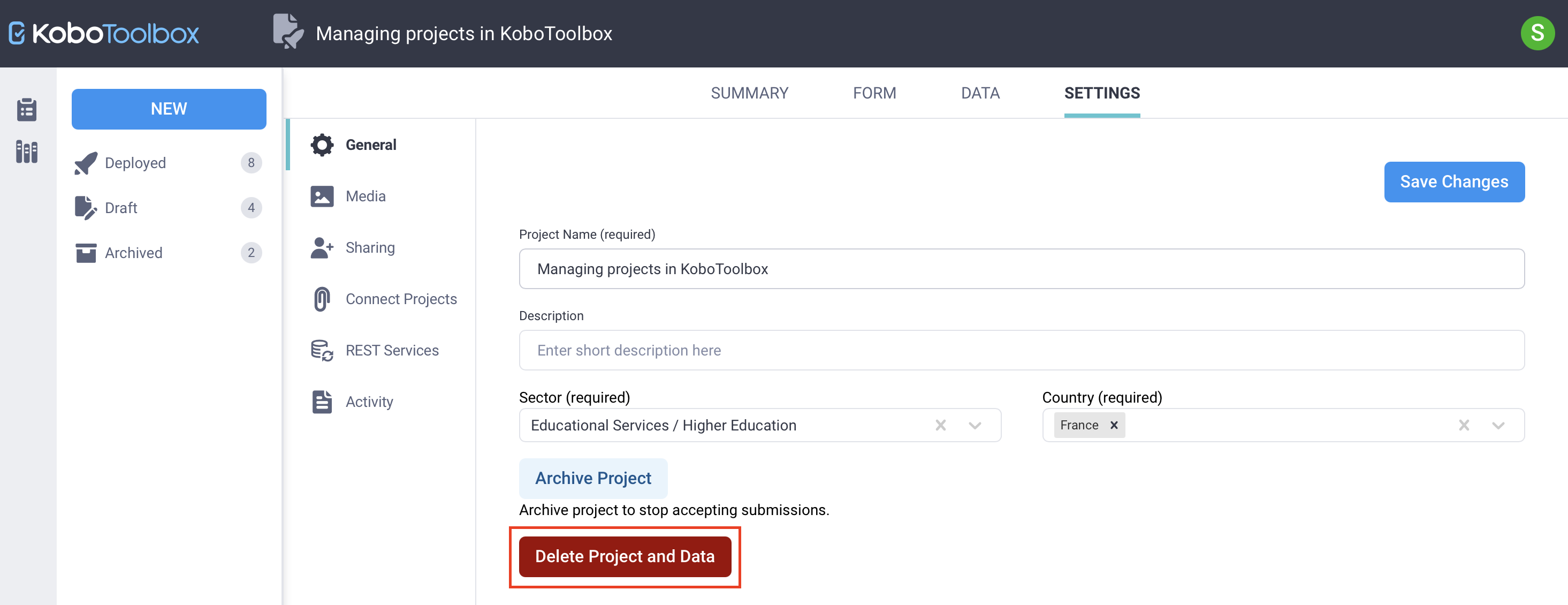
Open the project and go to the SETTINGS page.
In the General tab, click Delete Project and Data.
A confirmation dialog will require you to acknowledge the following:
You are about to permanently delete this form.
All data gathered for this form will be deleted.
The form associated with this project will be deleted.
Did you find what you were looking for? Was the information clear? Was anything missing?
Share your feedback to help us improve this article!