
Search the knowledge base, browse our resources, and visit our Community Forum for more detailed information
Last updated: 6 Oct 2026
A KoboToolbox project may include files and media added at different stages of the data collection process.
During form development, you can:
Attach media files to enhance your form with images, audio, or video.
Attach external data files to manage large choice lists or pull data into your form.
During data collection, respondents can submit their own files and media as part of their responses.
These two categories are handled differently within a project.
Note: Only media and files submitted by respondents count toward your plan’s storage limits.
This article provides an overview the following topics:
Adding media attachments and data files to your form
Uploading files and media to KoboToolbox
Collecting files and media from respondents
Viewing, downloading, and deleting media from respondents
KoboToolbox allows you to upload media files to your form, such as images, audio recordings, and videos, to help respondents better understand questions and reduce the need for follow-up clarification.
KoboToolbox also allows you to attach external CSV files to your form to manage large choice lists or support form logic. Using external files makes it easier to reuse and update datasets without editing the form itself, therefore reducing ongoing form maintenance and supporting consistent, high-quality data.
The sections below provide an overview of these features and link to the relevant support articles.
Including images, videos, or audio recordings in your form’s notes, questions, and choices can help make forms more engaging and accessible. This can especially be useful for users with visual impairments or literacy barriers.
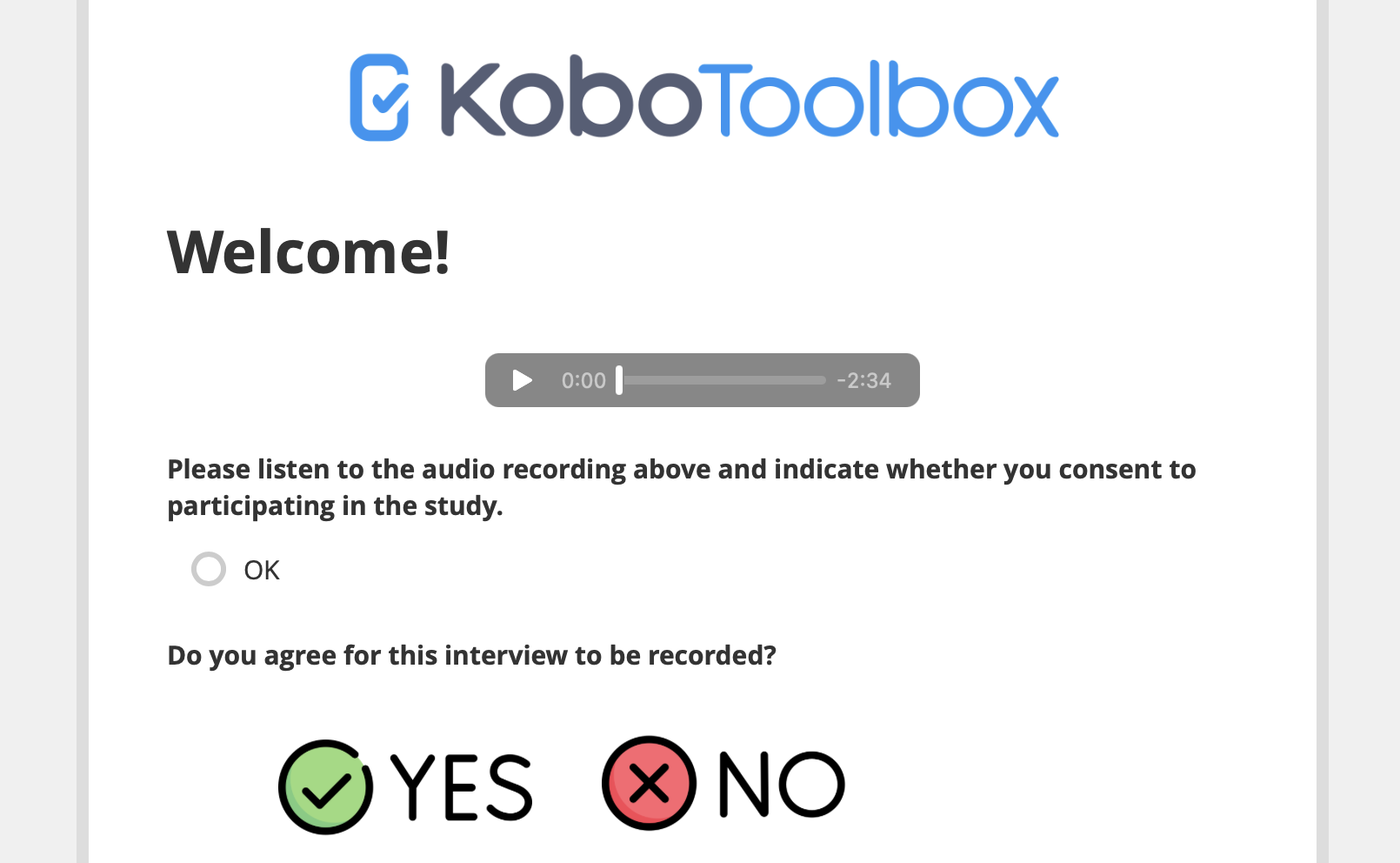
To include media in your form, you must use XLSForm and then upload the XLSForm to KoboToolbox. The KoboToolbox Formbuilder does not currently support adding media files directly within the form editor.
To learn how to include images, videos, or audio recordings in XLSForm, see Adding media to an XLSForm.
In addition to uploading media files, KoboToolbox supports attaching external data files to your forms to retrieve or reference external data during data collection.
There are two main ways to connect your form to external files:
The pulldata() function pulls information from an external data file while a form is being completed. This is useful for referencing existing datasets and reducing repeated data entry by enumerators.
Note: The pulldata() function uses external files as its data source. If you want to reference data from another KoboToolbox project instead of a CSV file, you can use dynamic data attachments.
The select_one_from_file and select_multiple_from_file question types allow you to define choice lists in an external file rather than directly in the form. Using external files for choice lists makes long lists easier to manage, reuse across forms, and update over time.
Supported file formats for these features include CSV, XML, and GeoJSON.
To learn how to attach external datasets to your form, see Pulling data from an external CSV and Selecting options from external files in the Formbuilder.
After adding media references or external files to your form, you must upload those files to your project. This is done in your project’s SETTINGS > Media page.
To learn how to upload files and media to KoboToolbox, see Uploading media files to a project.
The following types of files are currently supported for upload to KoboToolbox:
Media |
Types |
|---|---|
Image |
.jpeg, .png, .svg |
Audio |
.aac, .aacp, .flac, .mp3, .mp4, .mpeg, .ogg, .wav, .webm, .x-m4a, .x-wav |
Video |
.3gpp, .avi, .flv, .mov, .mp4, .ogg, .qtff, .webm, .wmv |
File |
.csv, .xml, .zip, .geojson |
Note: The maximum file size for uploads is 100 MB. Files larger than this must be reduced in size before uploading.
In addition to including media in your form, you can collect files and media directly from respondents during data collection. This includes images, audio recordings, videos, and other file types. Collecting media allows you to capture qualitative information that adds visual or audio context to your data.
Note: Each file uploaded by a respondent can be up to 10 MB in size, with a maximum total of 100 MB per submission.
The following media question types are available in KoboToolbox:
Formbuilder question type |
XLSForm question type |
Description |
|---|---|---|
Photo |
|
Capture or upload an image. Can also be used to collect drawings, annotated images, and signatures. |
Audio |
|
Record or upload an audio file. |
Video |
|
Record or upload a video file. |
File |
|
Attach a file (e.g., .pdf, .docx). |
KoboToolbox also supports background audio recording for entire interviews or focus group discussions.
To learn more about collecting media from respondents, see Media questions in KoboToolbox. To learn more about background audio recording, see Recording interviews with background audio recordings.
All media files submitted by respondents can be viewed from the data table. Images can also be viewed in the Gallery view of your project.
To learn more about viewing media from respondents, see Viewing media files.
You can download media files either individually from the data table, or in bulk from the Downloads page.
When you export your data in CSV or XLS format, the exported file also includes hyperlinks that open the associated media files in a web browser, as long as the default option to Include media URLs is selected.
To learn more about exporting your media files, see Downloading media files.
Finally, you may need to delete media files to manage storage, protect confidentiality, or correct submission errors. Media files can be deleted individually or in bulk.
Once a file is deleted, it is marked as Deleted in the data table and cannot be recovered.
To learn about different methods for deleting media files, see Deleting media files.
Did you find what you were looking for? Was the information clear? Was anything missing?
Share your feedback to help us improve this article!