
Search the knowledge base, browse our resources, and visit our Community Forum for more detailed information
Last updated: 8 Sep 2026
Before you can collect data in KoboToolbox, your form must be deployed. Deployment makes the form live and available for submissions. You can redeploy a form any time you make changes and want those changes to go live.
This article explains how to deploy and redeploy forms in KoboToolbox, how updates affect web forms and KoboCollect, what to check before making a form live, and what changes to avoid once data collection has started.
To learn more about collecting data with KoboToolbox, see Data collection with KoboToolbox.
When your form is ready to receive data, open the project and click DEPLOY in the FORM page to make it live.
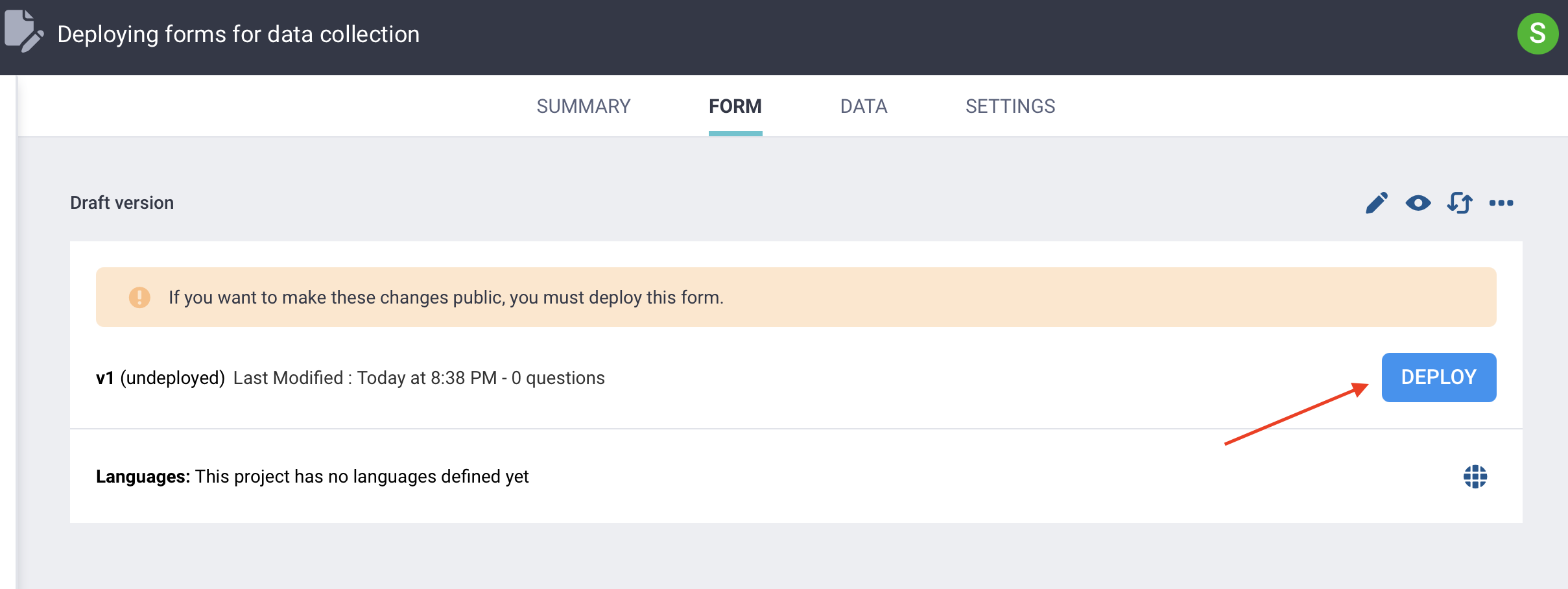
Once you have deployed a form, you can begin collecting data with it.
After a form has already been deployed, you will be prompted to REDEPLOY whenever you make changes that are not yet public. A yellow banner will appear saying “If you want to make these changes public, you must deploy this form.”
Note: Always redeploy forms after making changes to form media, translations, or form titles, even if KoboToolbox does not prompt you to redeploy.
The following steps are recommended before launching data collection:
Test the form preview before deployment. Only deploy a new form, or redeploy changes to an existing form, after testing it thoroughly in the form preview. This helps prevent faulty forms from going live.
Test the live deployed form. After deployment, open the form and submit test data to confirm that submissions work properly and the data appears in the data table as intended.
If relevant, test the form in KoboCollect. Always test the same data collection method(s) that will be used for actual data collection, whether that is web forms, KoboCollect, or both. This is especially important for KoboCollect, since it cannot be fully tested until the form has been deployed.
Share your form using View only mode for external testing. Once a form has been deployed, you can also share it with others for testing by using the View only web form mode.
Once you have thoroughly tested your form, you can begin data collection. Testing thoroughly before launch helps reduce the need to make changes after data collection has started.
You can continue to make changes to your forms even after data collection has started. However, those changes can affect both your data structure and your ability to review or edit older submissions.
Because of this, it is best to avoid major structural changes once live data collection is underway unless they are absolutely necessary.
Note: After making changes to a deployed form, do not forget to test and redeploy the form for changes to apply.
Changes to deployed forms that can affect your data structure include:
Change |
Implication for data structure |
|---|---|
Changing a question’s data column name |
KoboToolbox will treat it as a new variable and create a new column in the data table. |
Changing a question type while keeping the same data column name |
This can create inconsistent data in the same column and lead to errors (e.g., in the DATA > Reports view). |
Moving questions into or out of groups |
KoboToolbox will treat these questions as new variables and create new columns in the data table. |
Removing choices from a choice list |
Previous submissions may still contain those choice values, but they may no longer have an associated label in the form |
Adding new choices to a Select one or Select many question |
Make sure each new choice has a unique XML value within a given choice list. |
Deleting a question that is used elsewhere in the form |
If the question is referenced in a calculation, relevance condition, constraint, or another expression, you will also need to update those references. |
Changing question or choice labels |
Does not affect the data structure if the data column name or XML value stays the same, but previously collected data will use the updated label. |
Changing the meaning of existing choice values |
Changing choice names or labels can make data inconsistent across form versions and lead to misinterpretation. For example, this can happen if you reverse the meaning of values such as |
Note: If your form uses multiple languages, remember to also update the translations whenever you change the form. This is easy to miss after redeployment.
Changes to a form can also affect how older submissions behave when you edit them, because a submission created with an earlier version of the form may no longer match the current version. For example:
Change |
Implication for editing past submissions |
|---|---|
Adding new required questions |
Older submissions may require new answers before they can be submitted again. |
Removing questions or adding skip logic |
Older submissions may lose data previously collected in those questions when they are edited. |
Adding new validation rules or constraints |
Older responses may no longer meet the updated rules and may not be submitted again. |
After you redeploy a form, users will need to refresh or download the updated version to see the changes.
When using web forms, updates may take a few seconds to appear. Once the new version is ready, a yellow banner will appear at the top of the form saying: “A new version of this form has been downloaded. Refresh this page to load the updated version.” Refresh the page to load the latest version.

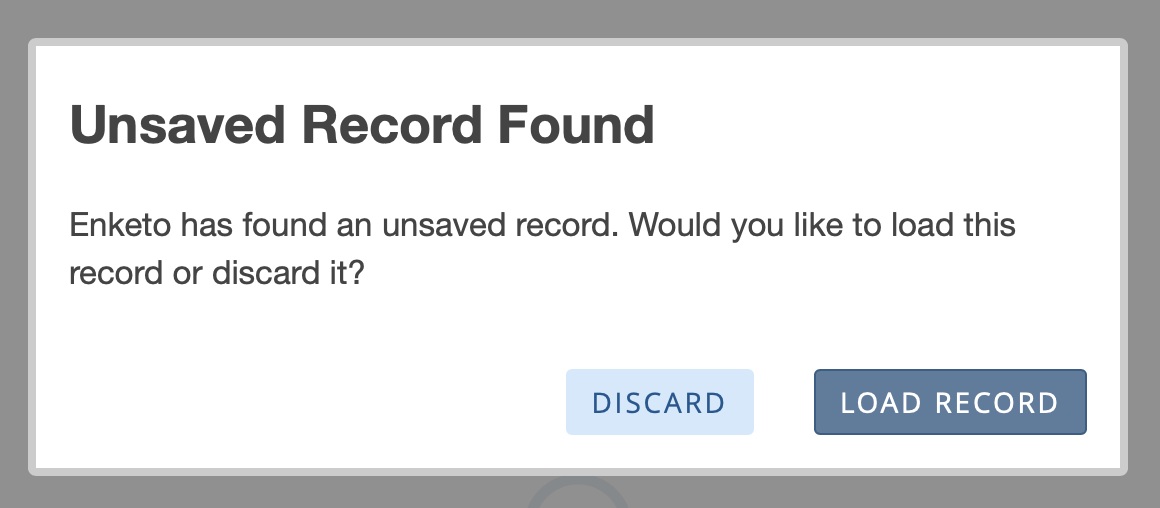
If someone has already started entering data, they can still refresh. KoboToolbox will prompt them to either discard the data already entered or load it into the new version of the form.
When using KoboCollect, users must download the latest version of the form to receive any updates. This requires an internet connection.
Retrieving the latest version of a form can be done manually whenever the form changes, or it can be configured to happen automatically at a set frequency through the form update settings in KoboCollect.
Note: After redeploying a form, make sure all data collectors update to the latest version. Otherwise, some users may continue submitting data with an outdated version, which can lead to errors or inconsistencies in the collected data.
choices sheet to find the duplicate value more easily. The error message will usually provide the row number in the choices sheet that is causing the error.
pulldata(), but that file has not been uploaded to the project.
Did you find what you were looking for? Was the information clear? Was anything missing?
Share your feedback to help us improve this article!