
Search the knowledge base, browse our resources, and visit our Community Forum for more detailed information
Last updated: 24 Nov 2026
KoboToolbox’s natural language processing tools include automatic transcription using automated speech recognition (ASR), which can convert audio responses into text for review, translation, and analysis.
You can transcribe individual audio responses or process multiple submissions in bulk from the data table. This article explains how to transcribe audio responses manually or automatically, review completed transcripts, and manage transcription usage limits.
Note: Automatic transcription is not available for all languages. For unsupported languages, you can transcribe audio responses manually.
Before transcribing audio responses, you need to collect audio data in your project.
Add an Audio question to your form or enable background audio recording.
Deploy the form.
Collect submissions containing audio recordings.
Note: For some supported languages, automatic transcription may not work for audio files longer than 50 minutes. For long interviews, consider using multiple audio questions instead of a single background audio recording.
To transcribe an individual audio response:
Open your project and go to DATA > Table.
Click Open next to the audio response you want to transcribe.
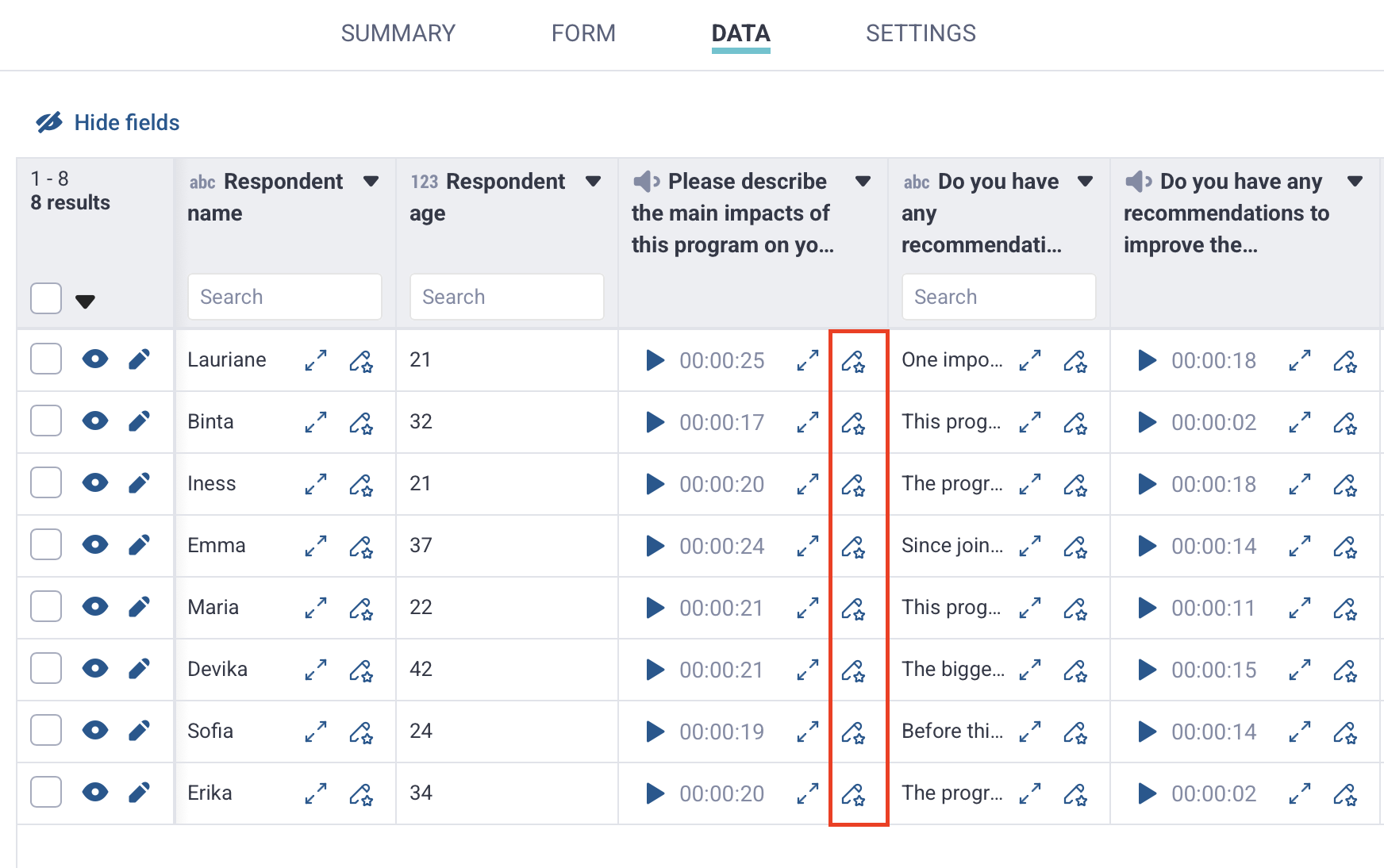
In the TRANSCRIPT tab, click begin.
Select the original language of the audio recording.
If available, select automatic to generate the transcript automatically. Select manual to transcribe the recording yourself.
If using automatic transcription, select the closest regional variant available and click create transcript.
Review the completed transcript and make any necessary edits.
You can play the audio recording in the top right corner to check the transcript against the recording.
Click Save.
When finished, click DONE, use the arrows to move to another submission, or continue to the TRANSLATIONS tab.

When you return to the data table, the transcript appears in a new column and can be downloaded alongside your survey data. After completing a transcript, you can translate it into one or more languages and/or analyze it.
Note: Automatically generated transcripts must be saved to prevent data loss. Navigating away from the page without saving may result in losing the transcript.
You can automatically transcribe audio recordings from multiple submissions at once.
To transcribe audio responses in bulk:
Open your project and go to DATA > Table.
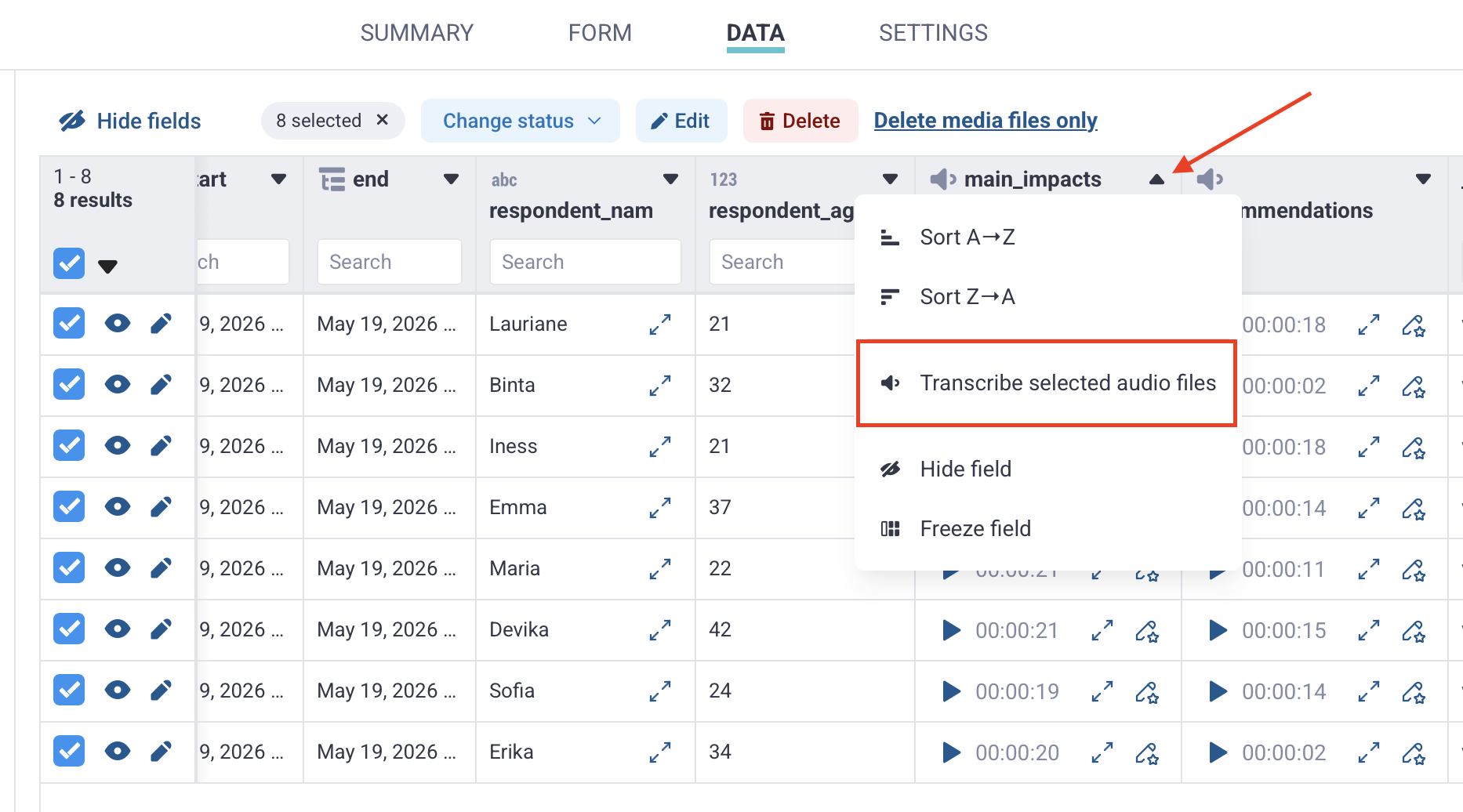
Select the submissions you want to transcribe using the checkboxes on the left.
In the column containing the audio recordings, click the arrow in the column header.
Click Transcribe selected audio files.
Select the language and region.
Click Start transcription.
Bulk transcription runs in the background, so you can continue working in other parts of KoboToolbox while it is processing. Completed transcripts are added to a new column in the data table and marked as ready for review.
If the selected submissions exceed your remaining transcription limit, you may need to select fewer rows before starting the bulk transcription.
Always review automatically generated transcripts to confirm that they accurately reflect the audio recordings before using them for analysis or translation.
To review and approve an individual transcript generated from bulk transcription:
Click Review.
Make any necessary edits.
Save the transcript and move to the next submission.
To approve multiple transcripts at once:
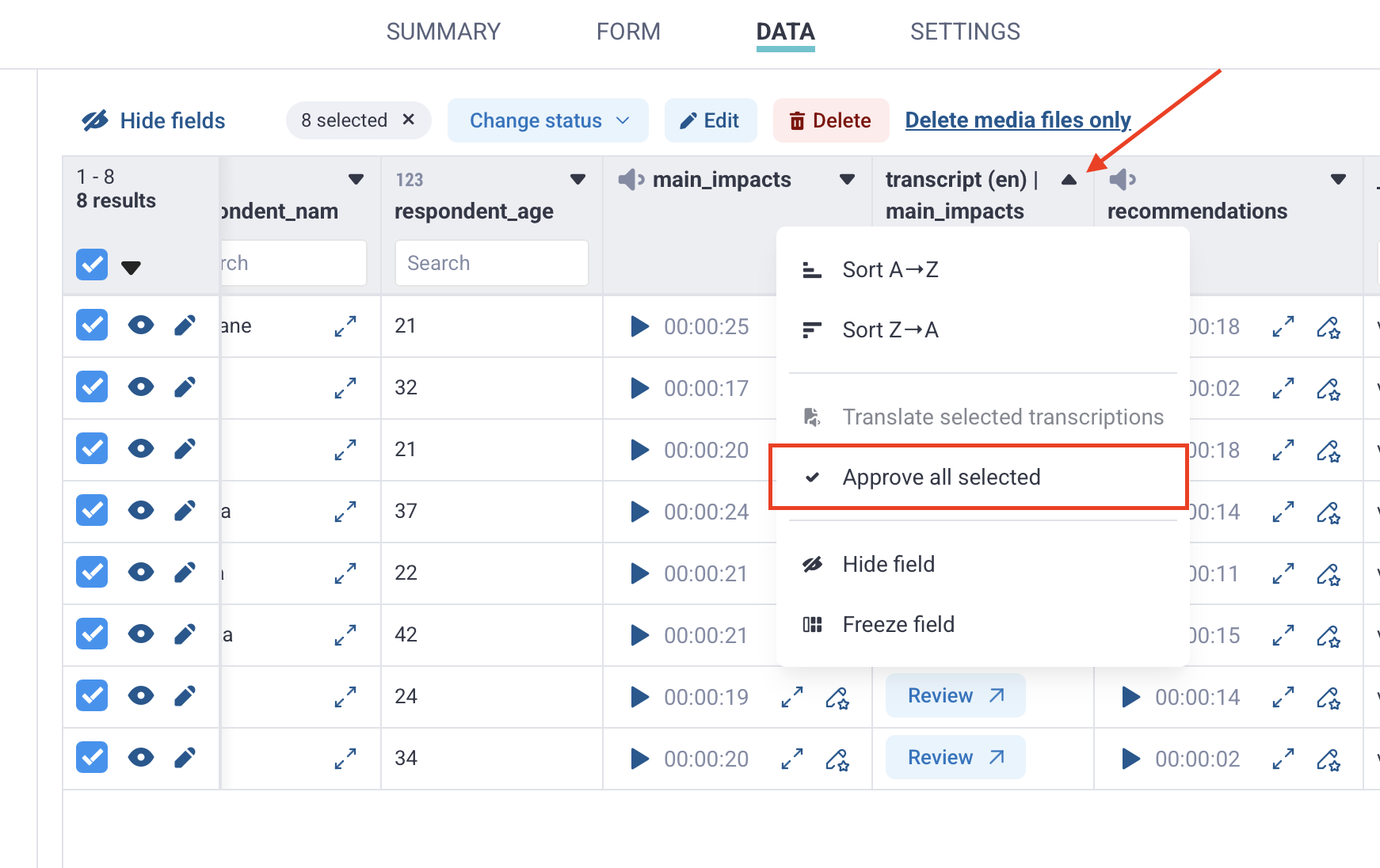
Select the relevant submissions using the checkboxes on the left.
In the transcript column, click the arrow in the column header.
Click Approve all selected.
KoboToolbox supports automated speech recognition (ASR) for supported languages and regional variants. ASR capabilities are provided by Google Cloud Compute, which currently offers automatic transcription in 112 languages (with 142 regional variants).
Note: Audio files are sent to the external transcription service only for the time required to process them. They are not stored by the service after processing or used to improve the service.
For manual transcription, you can select from approximately 7,000 living languages based on the ISO 639-3 list maintained by SIL International.
Note: When manually transcribing an audio response, it is still necessary to select the correct language, otherwise subsequent automatic translations may be inaccurate.
If you cannot find a language in the list, try searching for an alternative spelling or name. Language names are listed in English. Some languages may also be listed under an alternative name.
For a full list of supported languages for automatic transcription, see Languages supported for automatic transcription and translation.
Community Plan users can use up to 10 minutes of automatic transcription per month. Automatic transcription counts towards this limit whether audio files are processed individually or in bulk.
If you need additional transcription capacity, you can upgrade to a plan with a higher quota or purchase a Natural Language Processing (NLP) Package add-on. You can also continue transcribing audio responses manually without a usage limit.
Did you find what you were looking for? Was the information clear? Was anything missing?
Share your feedback to help us improve this article!