
Search the knowledge base, browse our resources, and visit our forum for more detailed information
Last updated: 20 Mar 2026
Calculations allow users to derive new variables, build advanced form logic, and display results to respondents during data collection. The Calculate question type performs mathematical operations using values entered in previous questions. By default, the result is hidden, but it can be displayed in the form if needed.
Calculations are processed within the form, which can reduce the need for post-collection data manipulation. The results are stored as new variables in the dataset and can be used throughout the form to apply skip logic, define validation criteria, or display dynamic content in question labels and notes.
This article explains how to add calculations in the Formbuilder, covering basic arithmetic and introducing more advanced expressions.
To add a calculation to your form:
Click the button.
Enter the calculation expression instead of the question label.
Click + ADD QUESTION.
Choose the Calculate question type.
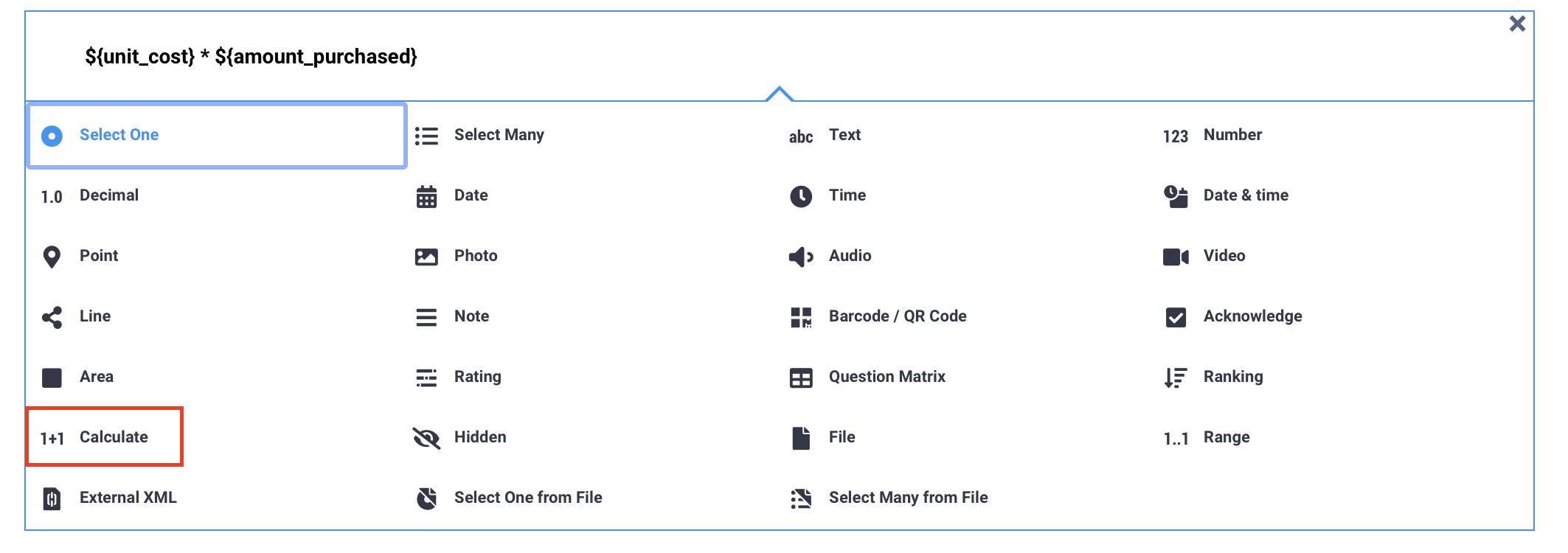
Calculation expressions are constructed using a combination of question references, mathematical operators, functions, and constants. For example:
${usd_cost} * 0.87 converts the value entered in the usd_cost question to another currency using a fixed exchange rate.
${total_cost} div ${units_purchased} divides the total cost by the number of units purchased to calculate the unit cost.
To learn more about each of these components, see Introduction to form logic in the Formbuilder.
To display the result of the calculation in a note, use the question referencing format ${data_column_name}, replacing data_column_name with the data column name of the Calculate question. You can also use this format to reference the result of the calculation in a question label or in your form’s logic.

Calculations can range from simple arithmetic calculations to advanced derivation of variables.
Arithmetic calculations allow you to perform basic calculations using the following operators:
Operator |
Description |
|---|---|
+ |
addition |
- |
subtraction |
* |
multiplication |
div |
division |
mod |
modulo (calculates the remainder of a division) |
Calculations in XLSForm follow the BODMAS rule for the order of mathematical operations: Brackets, Order of powers, Division, Multiplication, Addition, and Subtraction. This means that calculations within brackets (or parentheses) are performed first, followed by powers, then divisions, multiplications, and so on. Using brackets correctly ensures that your calculations function as expected.
Advanced calculations in KoboToolbox often rely on functions and regular expressions to make calculations more efficient.
Functions are predefined operations used to automatically perform complex tasks like rounding values, calculating powers, or extracting the current date.
Regular expressions (regex) are search patterns used to match specific characters within a string of text.
For examples of advanced calculations you can use in your forms and troubleshooting suggestions, see Adding calculations in XLSForm.
Did you find what you were looking for? Was the information clear? Was anything missing?
Share your feedback to help us improve this article!