
Search the knowledge base, browse our resources, and visit our forum for more detailed information
Last updated: 23 Apr 2026
KoboCollect is a free, open-source KoboToolbox app designed for data collection on Android mobile devices. Its offline capabilities and compatibility with most Android devices make it ideal for fieldwork.
Before using KoboCollect, you must set up a KoboToolbox account on the KoboToolbox website and deploy data collection forms.
This article covers how to set up KoboCollect on an Android device and connect it to a KoboToolbox account for data collection. To learn more about configuring KoboCollect settings and collecting data with the app, see Customizing KoboCollect settings and Collecting data using KoboCollect.
KoboCollect works only on Android phones and tablets. When choosing a device, consider the following:
It must run a version of Android supported by KoboCollect. Newer app versions require Android 8.0 or higher.
It should be suitable for your field conditions in terms of battery life, screen size, and durability.
It should have enough storage for your forms and submissions, especially if you collect photos, audio, video, or store many submissions offline before upload.
It should have any hardware your form requires, such as GPS or a camera.
It should be able to connect reliably to Wi-Fi or cellular data so forms and submissions can be downloaded and uploaded as needed.
In general, phones may be better for portability, while tablets may be better for longer questionnaires or more complex workflows.
Note: There is no exhaustive list of supported devices for using KoboCollect. However, there is an official list of devices that the app is tested on, which are the most reliable options.
The KoboCollect app can be downloaded from the Google Play Store. We recommend always using the latest version of the app, as it includes features and bug fixes not available in older versions.
Note: While KoboCollect continues to work on any Android phone or tablet running Android 5.1 or higher, Android 8.0 or higher is now required to obtain the newest app versions. The last available version for older devices will still be available in the Play Store and on GitHub.
To collect data with KoboCollect, you must configure the KoboCollect app on your mobile device to connect to the KoboToolbox server. This enables you to download deployed forms from KoboToolbox and send collected data back to the server.
To connect KoboCollect to the KoboToolbox server, you will need your KoboCollect URL, your username, and your password. After the initial manual setup, you can generate a QR code to configure other devices.
Note: In the KoboCollect app, user accounts are called Projects.
To manually set up KoboCollect, you will need to identify your KoboCollect URL. This URL is specific to KoboCollect and differs from the URL used to access your KoboToolbox account.
Your KoboCollect URL depends on your account’s server:
KoboToolbox Server |
KoboCollect URL |
|---|---|
Global KoboToolbox Server |
https://kc.kobotoolbox.org/ |
European Union KoboToolbox Server |
https://kc-eu.kobotoolbox.org/ |
Private Server |
Unique to each organization |
You can also find the KoboCollect URL on the KoboToolbox platform. Go to the FORM tab of your project and select Android application from the Collect data drop-down menu. The KoboCollect URL will be listed in step 3.
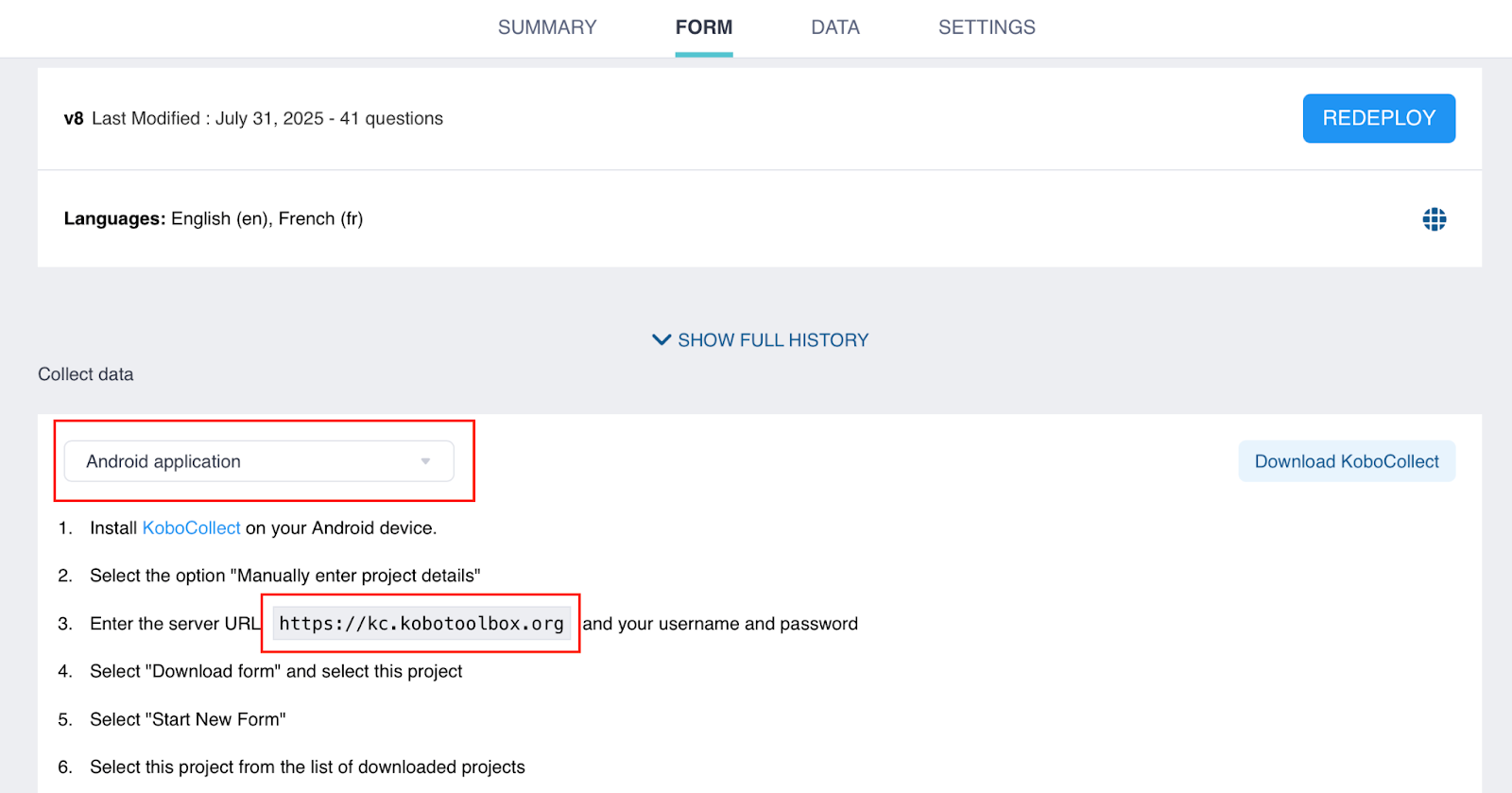
Once you have identified your KoboCollect URL, follow these steps to set up the server connection:
Open the KoboCollect app.
Select Manually enter project details.
Enter the KoboCollect URL, your username, and password.
Tap Add.
When configuration is complete, the main menu will be displayed.
Using a QR code efficiently configures KoboCollect on multiple devices with the same server settings (KoboCollect URL, username, password, and project configuration settings). This can be useful to avoid repeating manual steps or to configure enumerator devices without sharing account passwords.
Note: In order to use the QR code method, you must first manually configure one device and then copy the generated QR code to the other devices.
To access your QR code:
Go to the Projects menu and select the project you want to copy.
Tap Settings.
Select Project Management.
Tap Reconfigure with QR Code.
Choose QR Code. Your QR code will appear on the screen.
Take a screenshot of the QR code to share it for setting up other devices. You can also return to this menu anytime to access the QR code again.
To configure other devices using the QR code:
Open KoboCollect on the device you want to set up.
Tap Configure with QR Code.
Scan a QR code with the device’s camera, or tap the three dots in the top right corner and select Import QR code to use a screenshot saved to your device.
If the setup is successful, the app will be configured automatically.
Note: The QR code contains your account credentials, including your password. Anyone who scans it will have the same access permissions as the account it was generated from. If you only want someone to collect data (e.g., an enumerator), make sure the account used to generate the QR code does not have permissions to view, edit, or delete data. To keep your data safe, avoid sharing QR codes from accounts with full access.
Users can connect multiple KoboToolbox accounts and easily switch between different projects within the same KoboCollect app, regardless of whether they are on the same or different servers.
To set up additional projects in KoboCollect:
Tap the Project icon located in the top right corner.
In the Projects menu, tap Add project.
Set up a new project using the manual approach or by scanning a QR code.
When configuration is complete, the main menu will be displayed.
Tap the Project icon to open the menu. Both projects should now be visible.
Additional projects can be added by repeating the same process. The active project will be listed first in the Projects menu. To switch to a different project, simply tap its icon.
To learn more about changing how projects are displayed for easier recognition and switching, see Project display settings.
It is also possible to access projects in KoboCollect without a password. This is useful for projects with many enumerators, as it avoids the need to create individual accounts or share credentials.
Note: This approach requires enabling “Allow submissions to this form without a username and password” for your forms. To learn more about project-level sharing settings, see Sharing projects with project-level settings.
To connect to KoboCollect without authentication:
Enable “Allow submissions to this form without a username and password” for your forms.
[Optional] Create a dedicated KoboToolbox account for data collectors and share your forms with this account.
Connect to KoboCollect using the following credentials:
URL: KoboCollect URL followed by the account username (https://[kobocollect_url]/[username])
Username: (Leave blank)
Password: (Leave blank)
This approach allows users to download and submit data to any forms shared with username that do not require authentication.
To differentiate enumerators and track submissions, you can ask enumerators to enter a custom username, phone number, and email address in the User and device identity settings.
Note: This approach can be useful when your account uses two-factor authentication, as you will not be able to download forms or submit data using the normal approach.
Did you find what you were looking for? Was the information clear? Was anything missing?
Share your feedback to help us improve this article!